New Version Recognition automatically checks whether a file being uploaded may be a new version of an existing asset in the Asset Library. When the system finds a potential match, you'll be prompted to review the files and choose how to handle the upload, helping your team maintain clear and consistent version relationships.
Common Use Cases
Keep multiple iterations of the same design connected as the asset is revised over time.
Identify updated product images, posters, videos, or other assets when modified or re-exported files are uploaded again.
Before You Begin
Permissions required: This feature is disabled by default. System admins can enable and configure it in the Settings.
Prerequisite: An admin must enable New Version Recognition in the Settings before it can be used.
🚀 Quick Start
As an admin, go to Asset Library → Settings → Settings&Members → Space and enable New Version Recognition.
When a user uploads an asset that the system identifies as a potential new version, a notification appears in the lower-right corner.
Click Process Now to compare the existing asset with the newly uploaded asset.
Select how you want to handle the asset, then click Confirm.
📋 Step-by-Step Guide
1.Enabling New Version Recognition
As a system admin, go to Asset Library → Settings → Settings&Members → Space. Find New Version Recognition and enable the feature.
Once enabled, the system automatically checks uploaded files to determine whether they may be related to existing assets as new versions.
Admins can also click Expand in the Settings to configure filtering rules based on their team's needs, including:
Same-Batch Mutex: Files uploaded in the same batch are not matched against one another, preventing them from triggering version matches during bulk uploads.
Similar File Size: Uses differences in file size to further filter potential version matches.
Similar Resolution: Uses differences in image or video dimensions to filter out files with clearly mismatched resolutions.
Prefer Same Folder: When multiple potential matches are found, assets in the same folder or a related path are shown first.
💡 Tip: These rules help filter potential matches. Actual detection results depend on the system's assessment.
2.Uploading Assets and Waiting for Detection
Once the feature is enabled, users can upload assets as usual and the system will automatically check for potential new versions.
If no potential version match is found, the file will be uploaded through the standard upload process.
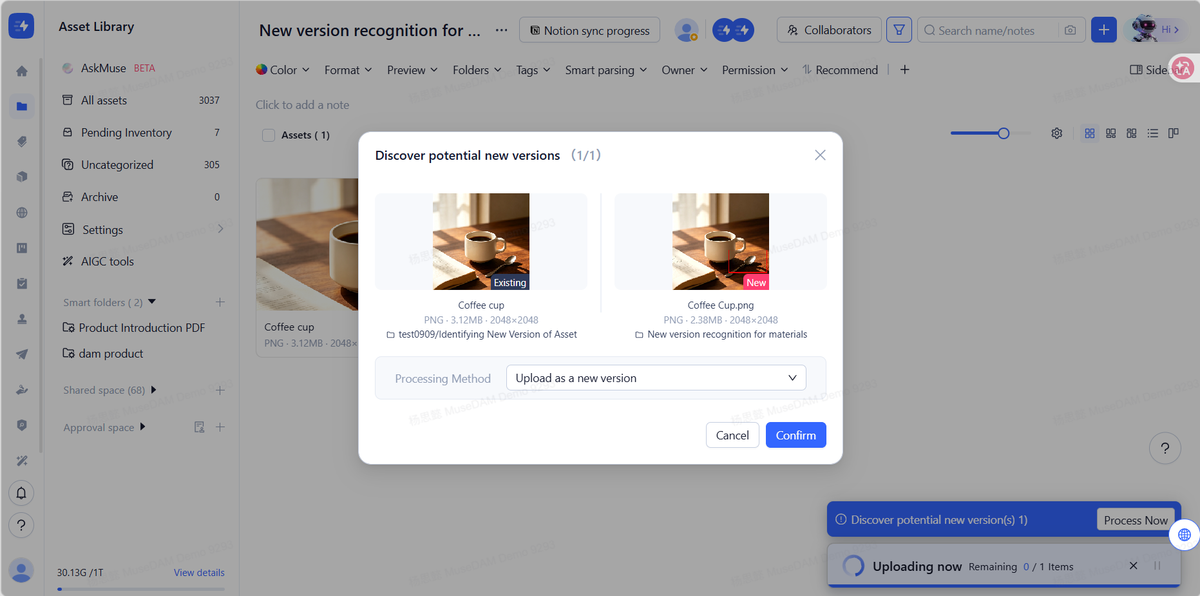
If the system detects a potential new version, a Discover potential new version(s) notification appears in the lower-right corner, along with the number of items that require review. Click Process Now to review the matches and choose how each upload should be handled.
3.Reviewing Potential New Versions
After you click Process Now, the existing asset and the newly uploaded asset are displayed side by side.
The asset on the left is the asset already stored in the Asset Library and is labeled Existing.
The asset on the right is the newly uploaded file and is labeled New.
You can also compare details such as the file name, file format, file size, resolution, and folder location to help determine whether the two files are actually different versions of the same asset.
⚠️ Note: A potential new version is only a suggested match. It does not mean that the two files have already been confirmed as versions of the same asset. Review the actual content and their business relationship before choosing how to proceed.
4.Choosing How to Handle the Upload
After reviewing the files, select the appropriate option under Processing Method.
This is the key step in New Version Recognition. Your selection determines how the newly uploaded file relates to the existing asset.
(1) Upload as a New Version
If the new file is an updated version of the existing asset, select Upload as a new version.
The newly uploaded file is added to the existing asset's version history instead of being created as a separate asset.
You can then open the original asset's detail page to view both the previous and new versions.
(2) Replace the Existing Version
If you want the newly uploaded file to update the current asset, select Replace the Existing Version.
The system updates the current asset with the new file, while the previous file is moved to the version history.
💡 Tip: If the new file represents the next iteration of an asset and you want to maintain a clear version history, Upload as a new version is usually the more appropriate option.
(3) Upload as a Separate Asset
If the system detects a similar asset but the two files are not actually versions of the same asset, select Upload as a Separate Asset.
The new file is added to the Asset Library as an independent asset, with no version relationship to the existing asset.
5.Confirming the Result
After selecting an action, click Confirm.
The system processes the asset according to your selection.
If there are multiple potential new versions to review, continue reviewing and processing the remaining matches.
❓ Frequently Asked Questions
Q: Why didn't I see a "Discover potential new version(s)" notification after uploading an asset?
A: This may happen for several reasons:
New Version Recognition has not been enabled by an admin.
The uploaded file differs significantly from existing assets, so the system did not identify a potential version relationship.
The file format or file name of the uploaded file does not meet the version-matching criteria for an existing asset.
If no potential new version is detected, the asset will continue through the standard upload process.
Q: Can files uploaded in the same batch be detected as new versions of one another?
A: This depends on whether the admin has enabled the Same-Batch Mutex rule.
When enabled, files within the same upload batch are not matched against one another. This is useful when bulk uploading product images, campaign assets, or project files.
Q: What's the difference between New Version Recognition and Duplicate Asset Detection?
A: The two features are designed to solve different problems.
Duplicate Asset Detection determines whether an uploaded file already exists in the Asset Library. When a duplicate is detected, users can decide whether to continue importing the file.
New Version Recognition determines whether an uploaded file may be a new version of an existing asset. When a potential new version is detected, users can choose to upload it as a new version, replace the existing version, or upload it as a separate asset.
The key distinction is simple: Duplicate Asset Detection checks whether an asset is a duplicate, while New Version Recognition checks whether there is a version relationship and helps you manage different versions of the same asset.

 Shanghai Public Network Security No. 31010402010164Network Information Account No. 310115402810501240017Network Information Account No. 310115402810501240033Model Record Number: Shanghai-TezignCreativeReasoning-202510170089Registration No.: Shanghai-Muse-20260731S0210