Smart Video Clipping uses AI to understand both spoken content and visual scenes in a video. It automatically identifies complete semantic segments, topic transitions, and scene changes, then splits long videos into clips that can be browsed, searched, and reused independently.
Unlike fixed-duration clipping, Smart Video Clipping aims to create cuts at natural points where the meaning is complete and the visual transition makes sense, making each clip more suitable for use as a standalone asset.
During browsing and preview, the system does not generate separate video files for each clip. A video file is generated on demand only when you download a clip, helping reduce unnecessary storage usage caused by duplicate files.
Common Use Cases
Split product launches, brand events, interviews, or livestream recordings into standalone clips for easier distribution and reuse.
Break down training videos, tutorials, or product demos by topic, knowledge point, or feature.
Quickly extract reusable footage from long-form ads, TVCs, or other video content for further editing.
Help short-form video teams identify potential content from long videos without manually reviewing and cutting them segment by segment.
Combine generated clips with AI Smart Tags and AI Content Analysis for easier search and asset management.
Before You Begin
Availability: MuseDAM Enterprise
Permissions required: You need permission to access the source video. To download generated clips, you also need download permission for the corresponding asset.
Prerequisite: The source video must be successfully uploaded to the Asset Library and processed by AI Content Analysis.
🚀 Quick Start
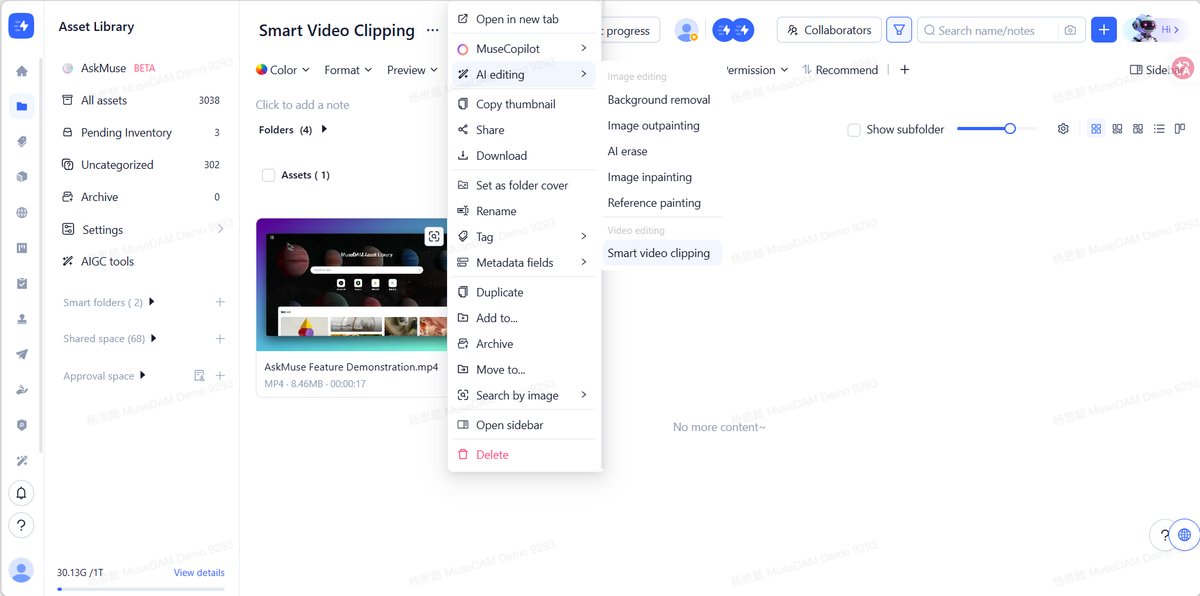
Find the video you want to process in the Asset Library and click ··· in the upper-right corner of the video.
Select AI editing → Smart Video Clipping.
View the generated video clips in the Asset Library. Select a clip and use the Sidebar on the right to view its AI Smart Tags, AI Content Analysis, related original video, and other information.
📋 Step-by-Step Guide
1.Creating Smart Video Clips
Go to the Asset Library and find the video you want to process.
Hover over the asset card and click ··· in the upper-right corner.
Select AI editing → Smart Video Clipping.
In the Select the folder to store assets window, choose the folder where you want to store the clips, then click Confirm in the lower-right corner.
The system analyzes the video's spoken content, semantic boundaries, and visual scenes, then automatically generates the clips.
Once clipping is complete, a notification appears in the upper-right corner.
💡 Tip: AI can more easily generate complete, reusable clips from videos with clear chapters, presenter narration, product explanations, interview Q&As, or distinct scene changes.
2.Viewing Generated Video Clips
Once the clipping task is complete, a folder with the same name as the source video is automatically created in the same directory. All generated clips are displayed together with thumbnails and duration ranges.
Select a video clip to view more information in the Sidebar on the right, including:
AI Smart Tags: Automatically generates tags based on the content of the current clip to make it easier to categorize and find later.
AI Content Analysis: Analyzes the clip's visual and semantic content and provides key information such as visual descriptions, main topics, scenes, and brand or product details, helping you quickly understand what's in the clip.
Related original video: Shows the source video associated with the current clip. Click it to open the original video, making it easy to verify the source and view the full context.
Basic Information: View details such as file format, owner, creator, source, creation time, and last modified time.
💡 Tip: When working with multiple clips generated from a long video, use thumbnails, duration ranges, and AI Content Analysis to quickly narrow down the results before previewing the clips you actually need.
3.Downloading Video Clips
Smart Video Clipping manages generated clips as logical segments. During browsing and preview, the system does not create a separate physical video file for each clip. This means generating multiple clips does not immediately result in equivalent file storage usage.
When you decide to use a clip for further editing, publishing, or external delivery, you can download it as a video file.
Select the target Video slicing in the Asset Library.
Click Download in the bottom action bar or the details panel on the right.
The system generates the corresponding video file on demand.
Once processing is complete, the clip is ready to download.
❓ Frequently Asked Questions
Q: What's the difference between Smart Video Clipping and fixed-duration clipping?
A: Smart Video Clipping does not simply split a video into fixed intervals, such as every 10 or 30 seconds. Instead, it considers spoken content, semantic boundaries, and visual changes to identify more natural points for each cut. As a result, generated clips may vary in length.
Q: Why is one topic sometimes split into two clips, or two different topics included in the same clip?
A: AI considers speech, visual content, and scene changes when determining where to create a cut. Rapid transitions, overlapping speakers, unclear pauses, prominent background music, or closely connected topics may result in cuts that differ from what a human editor would choose.
We recommend using Smart Video Clipping to quickly break down long videos and identify useful content, then selecting the clips that best fit your final publishing or editing needs.
Q: Will generated video clips take up a lot of storage space in the Asset Library?
A: No separate video file is generated for each clip during browsing and preview, so creating clips does not immediately result in equivalent file storage usage. A physical video file is generated on demand only when you download a clip.
Q: Can I find the original video after it has been clipped?
A: Yes. Select a video clip and go to Related original video in the Sidebar on the right to view its source video.