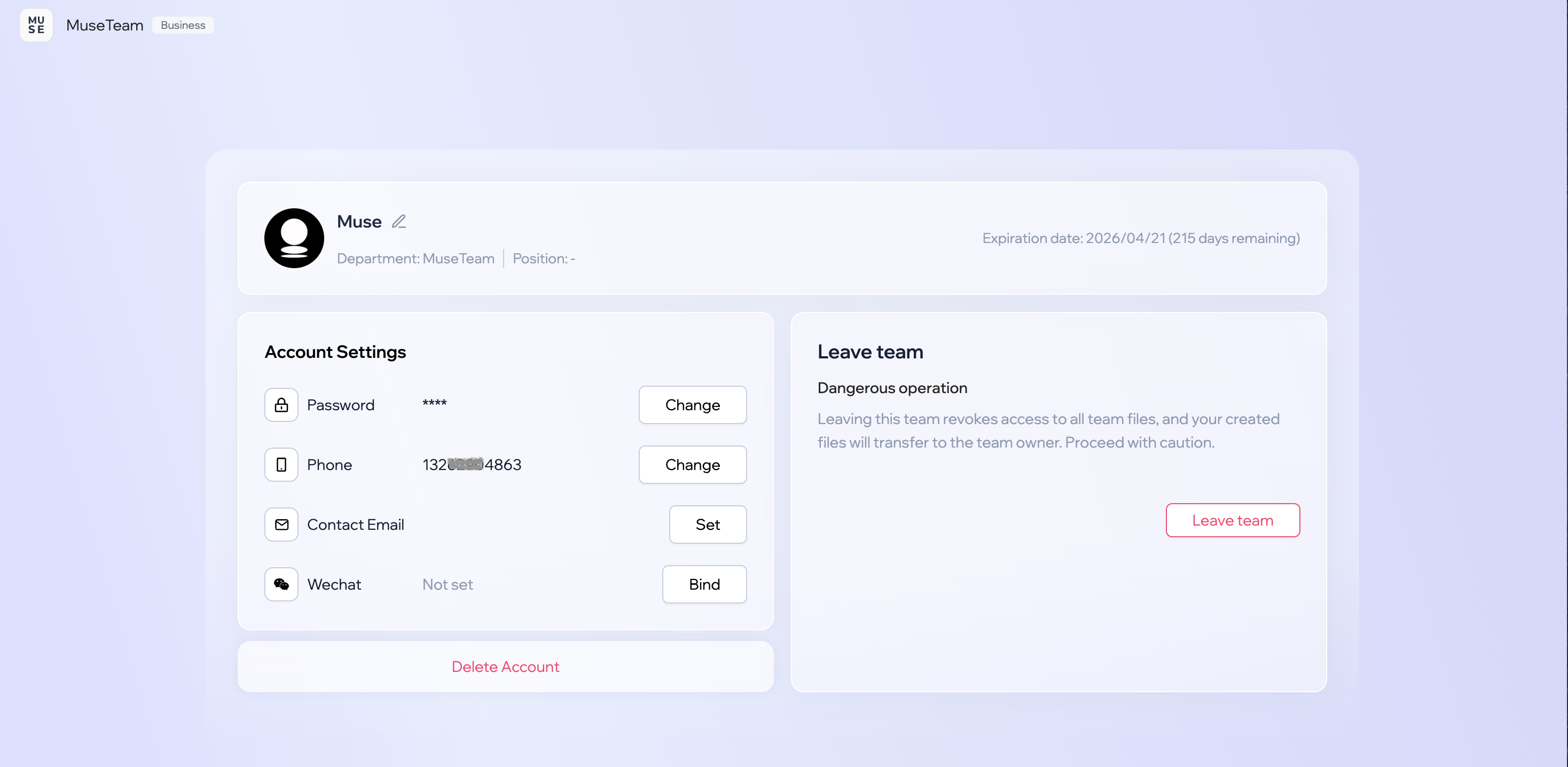
Account Settings is where you manage your personal account information — including your display name, login password, and contact details such as your phone number, email address, and WeChat account. Keeping this information accurate and up to date helps ensure your account stays secure and accessible.
Completing your profile after registering for the first time
Updating your phone number or email address
Changing your password periodically to keep your account secure
Linking your WeChat account for faster login
Updating your details when your contact information changes
Before you begin
Availability: All plans
🚀 Quick Start
Click your profile avatar in the top-right corner and select Account Settings
Find the information you want to update — display name, password, or contact details
Follow the on-screen prompts to verify your identity and save your changes
📋 Step-by-Step Guide
To open Account Settings, click your profile avatar in the top-right corner and select Account Settings from the dropdown menu.
1)Updating Your Display Name
Find the display name section on the Account Settings page
Click the edit icon next to your current name
Enter your new display name
Click Save to confirm
💡 Tips: Use your real name so teammates can identify you easily in collaborative workflows. Aim for 2–20 characters and avoid special characters.
2)Changing Your Password
Find the Login Password section under Account Settings
Click Change
Enter your current password to verify your identity
Enter and confirm your new password
Click Confirm Change to complete the update
Password requirements:
Length: 8–20 characters
Must include at least two of the following: letters, numbers, special characters
Avoid common or easily guessed passwords
3)Changing Your Phone Number
Click Change next to your current phone number
Enter the verification code sent to your current phone number to confirm your identity
Enter your new phone number
Enter the verification code sent to the new number
Click Confirm Change to complete the update
⚠️ Note: Make sure your new number can receive SMS messages. Your phone number is used for password recovery and security verification.
4)Setting Up a Contact Email
Click Set Up Now next to the Contact Email field
Enter a valid email address
Check your inbox for a verification email
Click the verification link in the email to complete the setup
5)Linking Your WeChat Account
Click Link Now next to the WeChat field
Scan the QR code that appears using the WeChat app
Confirm the authorization in WeChat
Return to the page to confirm the link was successful
Benefits of linking WeChat:
Sign in quickly using WeChat
Receive important notifications directly
Makes it easier to use MuseDAM on mobile
6)Leaving a Team (Team Plan)
⚠️ This action is irreversible. Once you leave a team, you will immediately lose access to all files in that workspace.
Find the Leave Team section on the right side of the page
Read the warning carefully — you will no longer be able to access team files after leaving
Make sure any files you need have been backed up or transferred
Click Leave Team to confirm
Before you proceed:
Leaving a team cannot be undone
Back up or transfer any personal files beforehand
Consider reaching out to your team admin to confirm any access or permission considerations
❓ Frequently Asked Questions
Q: I've forgotten my current password — what should I do?
Click Forgot Password on the login page and reset it using your registered phone number or email address.
Q: My WeChat linking attempt failed — how do I fix it?
Make sure you're running the latest version of WeChat, then clear your browser cache and try again.
Q: I'm not receiving the email verification message — what should I check?
Check your spam or junk mail folder first, and confirm that the email address you entered is correct. You can also request a new verification email to be sent.
Q: Can I rejoin a team after leaving?
Yes — but you'll need your team admin to send you a new invitation, and your previous permissions will need to be reconfigured from scratch.
🔧 Troubleshooting
Verification code not working
Double-check that you've entered the code correctly
Verification codes are typically valid for 10 minutes — request a new one if it has expired
Network or connectivity issues
Refresh the page and try again
Check your internet connection
Clear your browser cache
Changes not saving
Make sure all required fields are filled in
Confirm that the new information meets the required format
Try again after a moment, or contact support if the issue persists