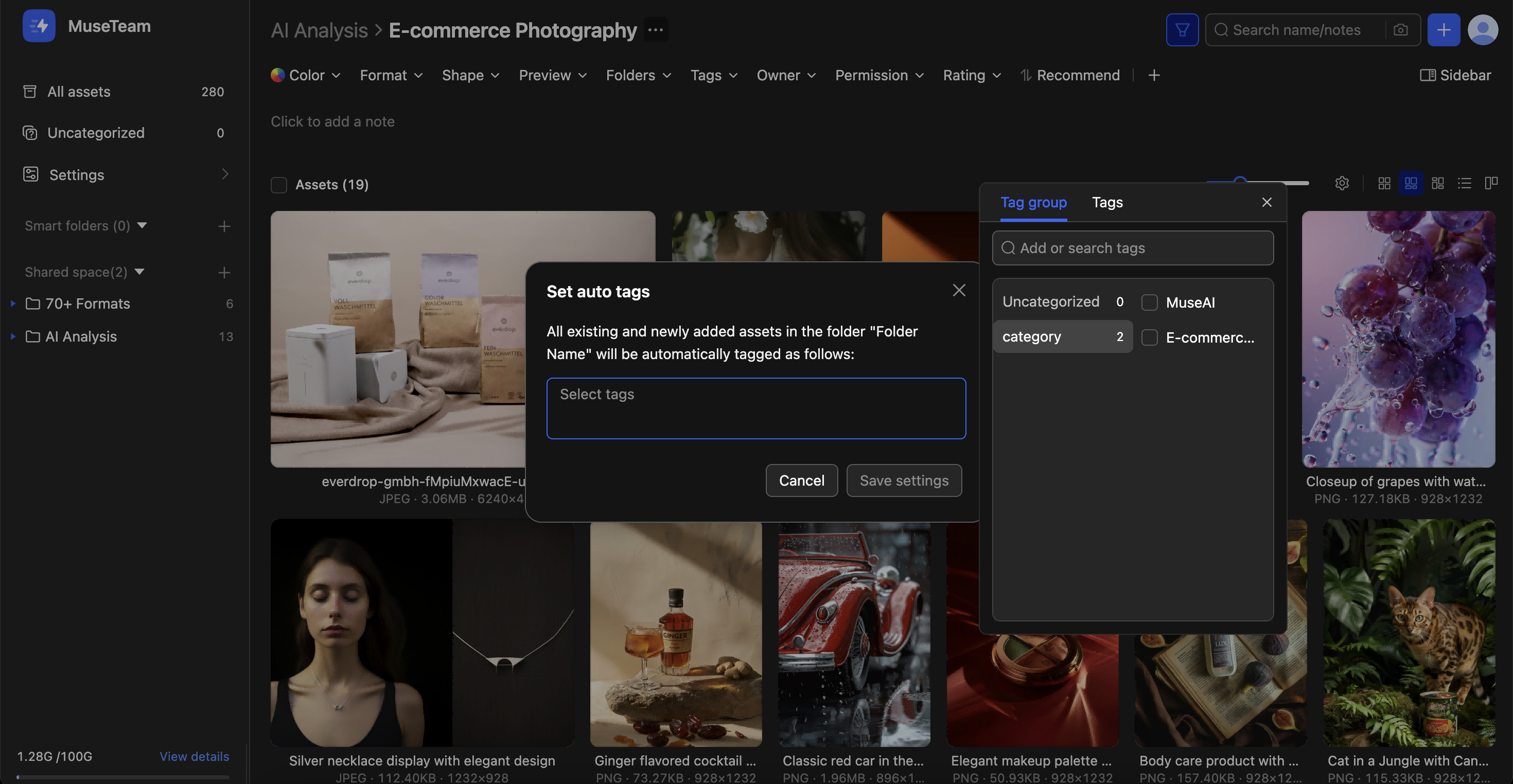
Folder Auto-Tagging lets you assign tags to a folder so that every asset inside it — both existing and newly uploaded — is tagged automatically. It's the fastest way to tag assets at scale without having to touch each one individually.
— If a folder's assets are missing tags, auto-tagging brings them up to speed in one go, making search results more complete and reliable
Keeping up with ongoing uploads — Once set up, any asset added to the folder going forward will automatically inherit the assigned tags — no manual tagging needed, ever
Before you begin
Availability: All plans
Permissions required: Folder owner or member with edit permission
Prerequisite: The tags you want to apply must already exist in your tag library
🚀 Quick Start
Find the target folder in your asset library, right-click it, and select Set Auto-Tags
Click Add Tags
The tag selector will expand on the right — browse by Tag Group or Tag, or search for a tag by name using the search field
Check the tags you want to apply and confirm they appear in the input field
Click Save Settings to finish
✨ Expected result: All existing assets in the folder are tagged immediately. Any assets uploaded to the folder going forward will automatically inherit the same tags.
📋 Step-by-Step Guide
Opening the Auto-Tag Settings
Option 1: Right-click the folder in your asset library → Set Auto-Tags
Option 2: Open the folder, click the ··· menu at the top → Set Auto-Tags
Selecting Tags
The tag selector on the right side of the dialog offers two ways to browse:
Tag Group tab — Browse tags organized by group. Select a group on the left to view all tags within it. Best when you know which category you're looking for
Tag tab — Shows a flat list of all available tags. Great for a quick global search
You can also type directly in the search field to find tags by name — or enter a new name to create a tag on the spot.
⚠️ Note: If a tag doesn't appear in the selector, you'll need to create it first via Admin Console → Tag Management before returning here to apply it.
How Auto-Tagging is Applied
Asset Type
Auto-Tagged?
Assets already in the folder when auto-tags are set
✅ Tagged immediately
New assets uploaded to the folder after setup
✅ Auto-tagged on upload
Assets moved into the folder from another location
✅ Auto-tagged on move
Assets moved out of the folder to another location
❌ Tags are retained, not removed
❓ Frequently Asked Questions
Q: I saved my auto-tag settings, but the assets in the folder don't seem to be tagged yet — what's happening?
Tag processing takes a moment to complete. For folders with a large number of assets, this can take anywhere from a few seconds to a few minutes. Refresh the page and check back shortly — the tags should appear once processing is done.
Q: Can I set multiple tags at once?
Yes. You can select as many tags as you need in a single session. All selected tags will be applied to the assets simultaneously.
Q: Will folder auto-tags conflict with AI-generated tags?
Not at all. Folder auto-tags are manually defined business tags, while AI-generated tags are content-based labels created automatically by the system. The two are stored independently and complement each other — together, they improve the discoverability of your assets.
Q: If an asset is moved out of the folder, will its auto-tags be removed?
No. Tags that have already been applied to an asset stay with it even after it's moved out of the folder. They won't be removed automatically.