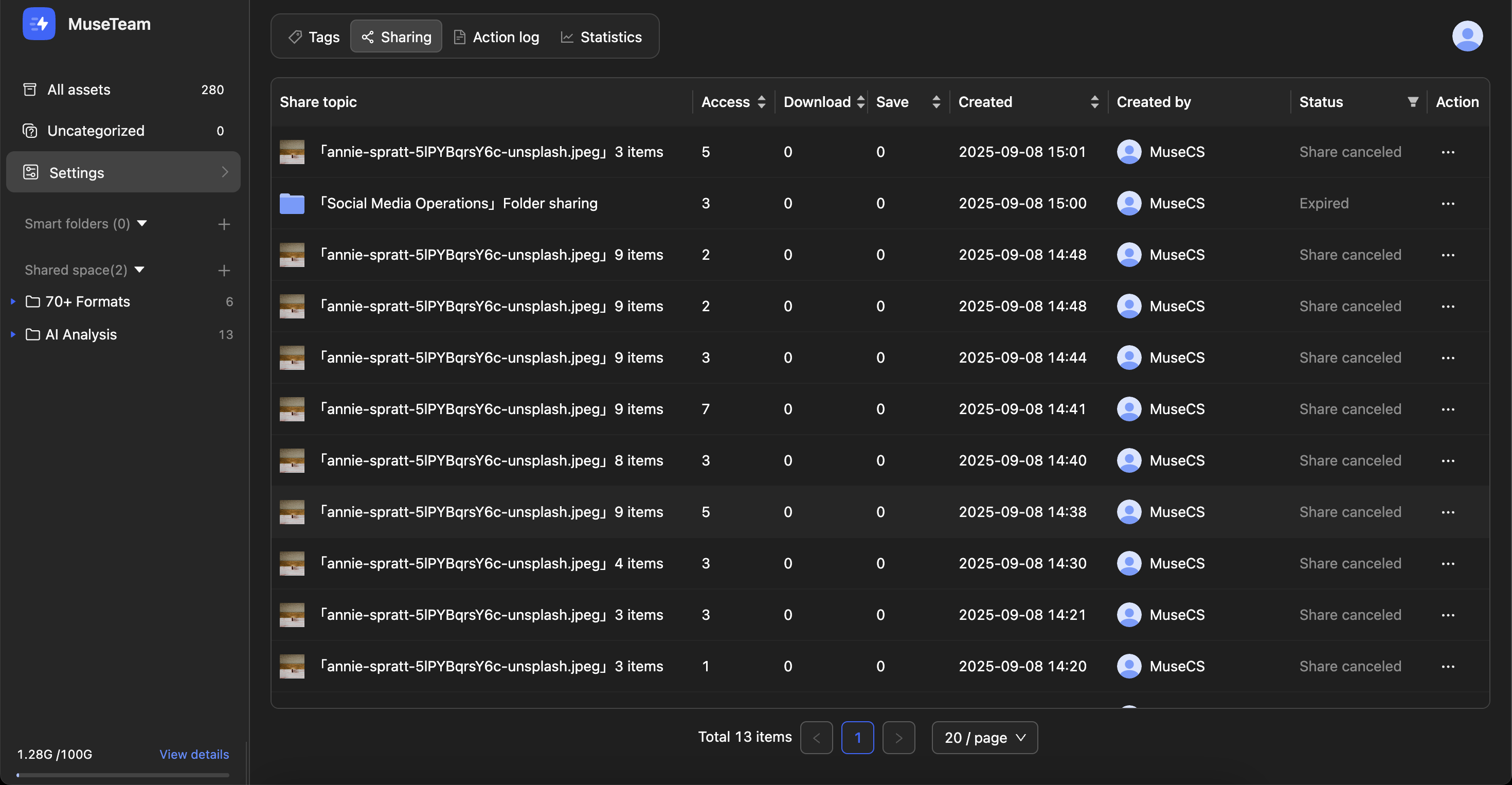
Share Link Management gives administrators a centralized place to monitor and manage every share link created across the team — including access analytics, permission adjustments, and link status controls. With everything in one place, you can keep your asset sharing secure, compliant, and easy to oversee.
Common use cases
Marketing teams monitoring how brand assets are being shared externally
Admins tracking engagement data across shared content
Organizations controlling sharing permissions and expiry dates for sensitive assets
Routine cleanup of expired or inactive share links
Before you begin
Availability: All plans
Permissions required: System Administrator or Content Administrator
Prerequisite: At least one share link must already exist
🚀 Quick Start
Click Admin Console in the left navigation → select Share Management
Review your sharing stats: views, downloads, and saves
Locate the link you want to manage in the share link list
Click the options menu in the Actions column to make adjustments
Confirm and save your changes
✨ Expected result: You'll have a full view of all active share links and can adjust permissions or revoke access as needed.
📋 Step-by-Step Guide
Go to Admin Console in the left navigation and select Share Management to open the centralized share link management interface.
1)Reviewing Share Analytics
At the top of the management interface, you'll find three key metrics:
Metric
Description
Link Views
Total number of times the share link has been accessed
Downloads
Total number of asset downloads made via the share link
Saves
Number of times recipients have saved shared content to their own library
💡 Tip: Reviewing these metrics regularly is a great way to gauge the reach and engagement of your shared content.
2)Managing Share Links
Click the menu in the Actions column to access the following options:
Edit Share Link Settings Click Manage Share Link to modify:
Expiry date — Set the link to expire after 7 days, 30 days, or never
Sharing scope — Define which users or groups can access the link
Access permissions — Control whether recipients can view only, download, or save assets to their library
Password protection — Add or update an access password
Copy Link Instantly copy the current share link to your clipboard for quick redistribution or use on another platform.
Stop Sharing Revoke access immediately by disabling the link — useful for sensitive content or time-limited shares that are no longer needed.
⚠️ Important: Stopping a share is permanent and cannot be undone. Please make sure you're ready before proceeding.
❓ Frequently Asked Questions
Q: Some share links aren't showing up in the list — why?
Check the following:
Confirm that you have administrator permissions
The link may have been deleted from the sharing history by the person who created it
Q: What should I do with expired share links?
Expired links are clearly marked as "Expired" in the list. You can safely remove them by clicking Delete Record to keep your share management view clean.
Q: How quickly do permission changes take effect?
Immediately. There's no delay — the next time a recipient tries to access the link, the updated permissions will apply.
Q: Is the analytics data updated in real time?
View counts and download figures update hourly. Save-to-library data updates in real time.