The MuseDAM Web Collector Extension is a powerful, one-click browser extension designed to instantly capture images, videos, and web pages from anywhere on the internet. Supporting both intuitive drag-and-drop actions and advanced bulk selection, it empowers marketing and creative teams to effortlessly harvest inspiration and reference materials without ever leaving their browser.
Why use this feature?
Competitor Research: Quickly gather competitor product shots, ad creatives, and packaging designs.
Inspiration Gathering: Seamlessly bulk-collect mood board assets from platforms like Unsplash, Pinterest, and Behance.
Asset Library Building: Systematically aggregate industry-specific visual resources to build out your internal repository.
Trend Analysis: Capture the latest aesthetic trends and product visuals across fashion, beauty, tech, and other fast-moving industries.
Prerequisites
Availability: All MuseDAM plans.
Permissions: Contributor role or higher.
Requirements: The MuseDAM Web Collector Extension must be installed, and you must be logged into the MuseDAM web application.
🚀 Quick Start
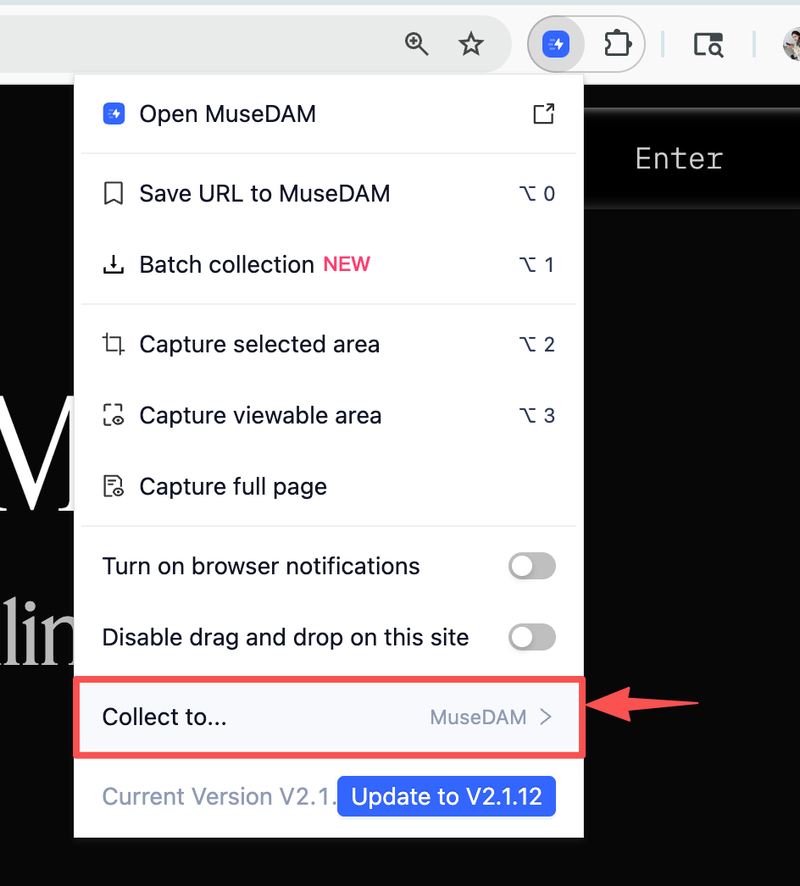
Activate: Visit your target website and click the MuseDAM icon in your browser's extension toolbar.
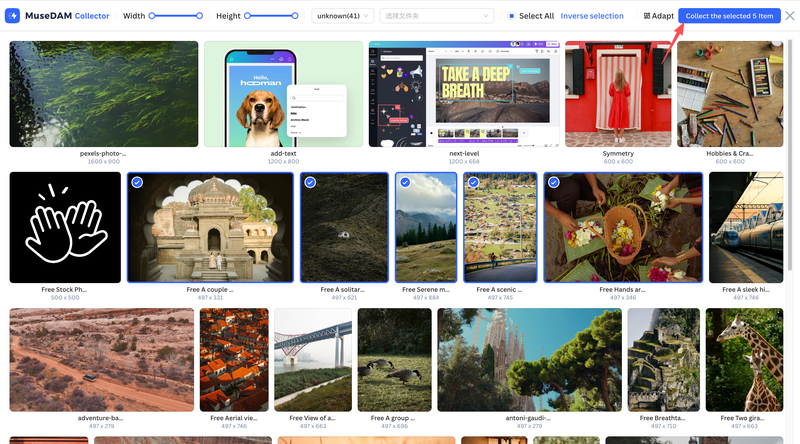
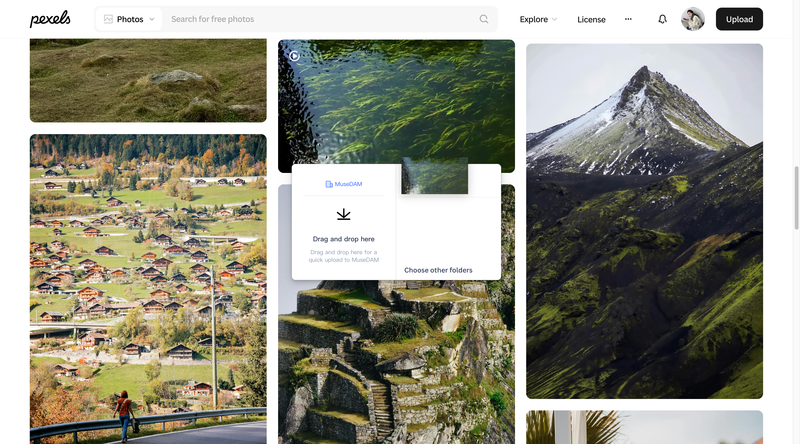
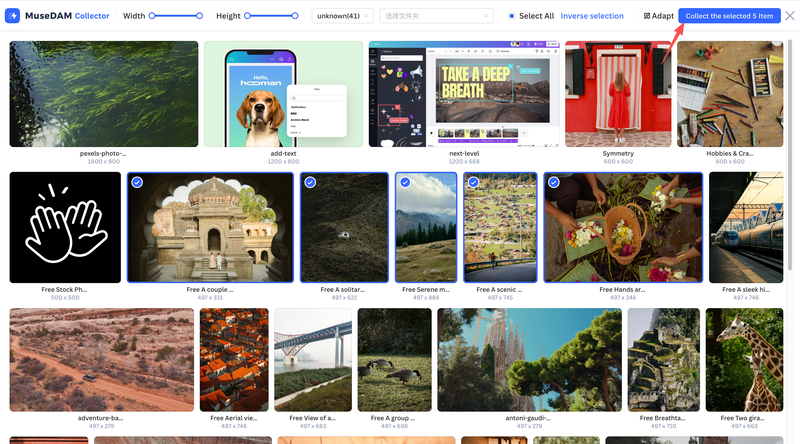
Select: Simply drag and drop an individual asset, or click Bulk Collect to use the "Select All" / "Invert Selection" tools for multiple files.
Collect: Click the Collect Selected button. The assets will automatically upload to your MuseDAM library.
🎯 Expected Result: Captured images are instantly uploaded to your Asset Library, where our AI automatically parses them to generate Smart Tags and metadata.
📝 Detailed Installation Guide
Method 1: Install via Chrome Web Store (Recommended - Auto Updates 👍)
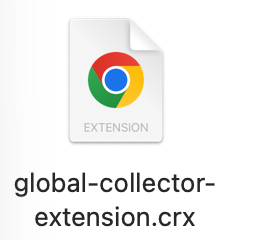
Step 2: Extract the downloaded .zip file to locate the .crx extension file.
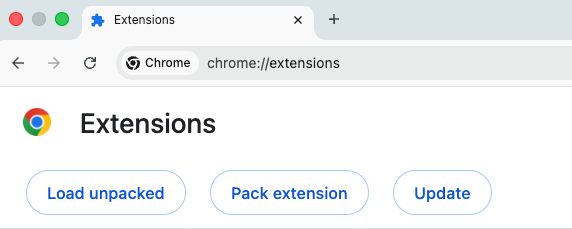
Step 3: Open your browser (Chrome / Edge) and type chrome://extensions into the address bar.
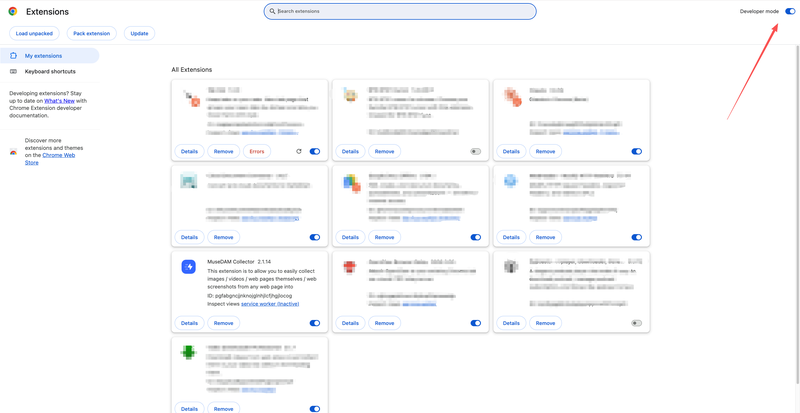
Step 4: Toggle on Developer mode (located in the top right corner for Chrome, or the left sidebar for Edge).
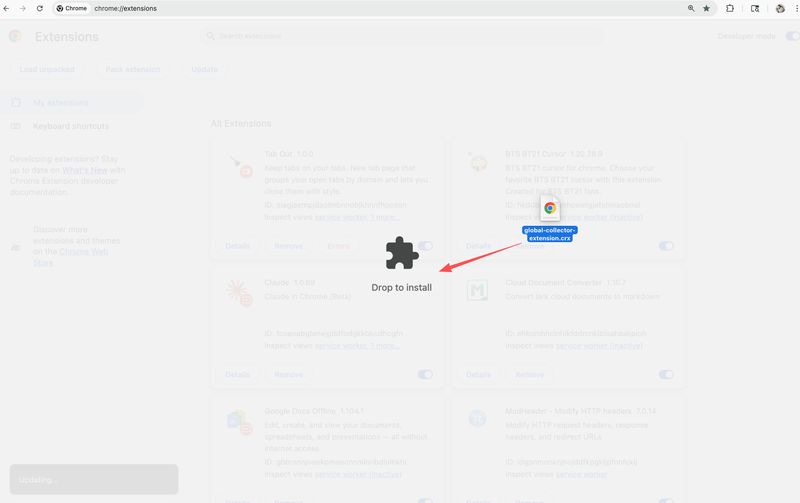
Step 5: Drag and drop the musedam-chrome.crx file directly into the extensions page.
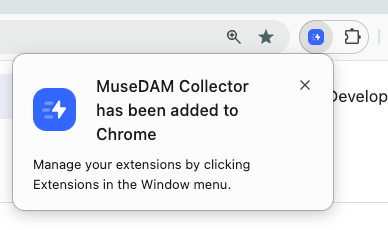
Step 6: Click "Add Extension" when the prompt appears to finish the installation.
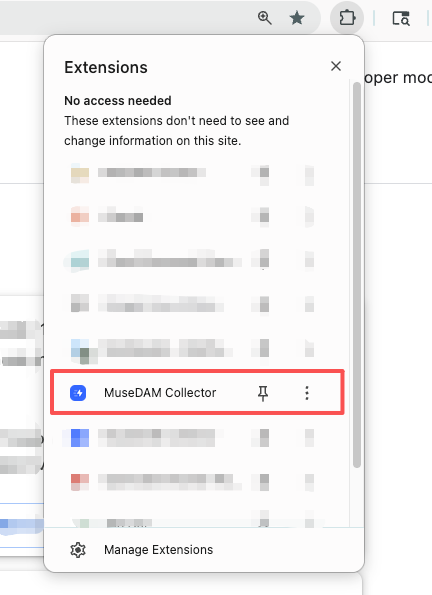
Step 7: Click the puzzle icon in your browser toolbar and click the Pin icon next to the MuseDAM Extension so it stays visible for quick access.
❗️ Important: After installing the extension, you must refresh any previously opened web pages before the collector functions will work on them.
⚙️ Core Operations Guide
Note: Any image saved via the extension will automatically retain its original source URL in its metadata for easy backtracking.
1)Drag & Drop (Images/Videos)
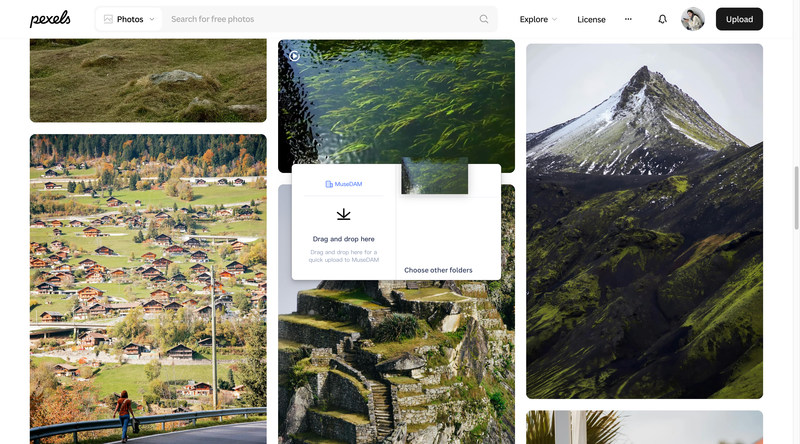
Open any website, click and drag an image or video, and drop it into the floating MuseDAM drop zone that appears. A "Saved Successfully" prompt will confirm the upload to your workspace.
2)Bulk Collection
Click the pinned extension icon and select Bulk Collect.
Use Select All to highlight all eligible images on the current page.
Use Invert Selection to easily swap your highlighted choices.
Select your target destination folder from the dropdown, and click Collect Selected to execute.
3)Save Webpage (Bookmark)
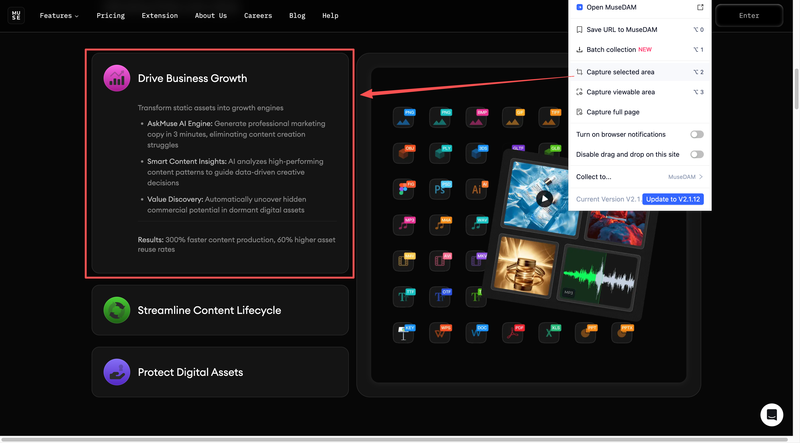
Click the extension and select Save URL to MuseDAM to store the current webpage as a visual bookmark in your asset library.
4)Visible Area Screenshot
Click the extension and select Visible Area Screenshot to snap a picture of exactly what is currently displayed within your browser window.
5)Custom Area Screenshot
Click the extension and select Custom Area Screenshot. Your cursor will become a crosshair—click and drag to freely draw a bounding box around your desired content, then click Save.
6)Full Page Screenshot
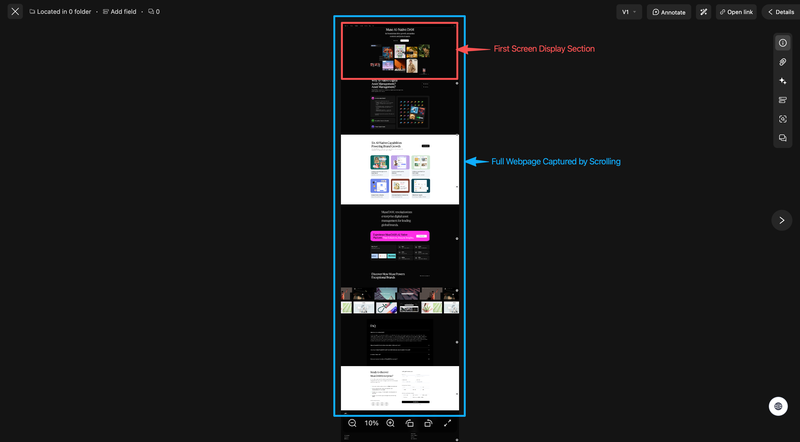
Click the extension and select Full Page Screenshot. The extension will automatically scroll down the page, capturing the entire length of the website into a single, high-resolution image.
7)Switch Workspaces
Working across multiple teams? Open the extension menu to easily toggle between your Personal Workspace and various Team Workspaces.
👉 Other Features
Disable Drag & Drop: Toggle "Disable drag-and-drop on this site" to prevent the extension's drop zone from appearing, ensuring it doesn't interfere with complex websites.
System Notifications: Check "Use system notifications" to receive native OS pop-up alerts regarding your collection status.
Quick Access: Click "Visit MuseDAM" within the extension to instantly open your Asset Library in a new tab.
❓ FAQs
Q: Why isn't the extension recognizing images on the page?
A: Please check the following:
Ensure the extension is properly installed and you are logged in.
Wait for the webpage to fully load.
If the site uses "lazy loading," you may need to scroll down manually to force the images to render before collecting.
Try refreshing the page. Some assets are embedded in ways that restrict direct access.
Q: What if the captured image quality is too low?
A: Try these tweaks:
Adjust the Width and Height sliders in the Bulk Collect menu to filter out thumbnails and enforce higher minimum dimensions.
Use the format filter to select PNG, which typically yields higher quality.
Note: If a website provides responsive images, the extension automatically attempts to fetch the highest resolution available.
Q: Why do some images fail during Bulk Collection?
A: Unstable networks can cause timeouts. Additionally, some websites use hotlinking protection (anti-leeching) to prevent third-party downloads. We recommend collecting in batches of 50 or less. You can try manually dragging and dropping the failed images.
⚠️ Error Handling
Error: Cannot connect to MuseDAM server
Fix: Check your internet connection and ensure your MuseDAM account is actively logged in.
Error: Insufficient storage space
Fix: Clean up unused assets in your workspace or contact your admin to upgrade your storage quota.
Error: Outdated extension version
Fix: Navigate to chrome://extensions to update your extension to the latest build.
⚡ Performance Optimization
Batch Control: To prevent browser lag or freezing, we recommend keeping bulk collections under 100 images per batch.
Format Selection: Prioritize the WebP format when available, as it offers a smaller file size for faster transfers without sacrificing quality.
Cache Maintenance: Periodically clear your browser cache to ensure the extension continues running smoothly.