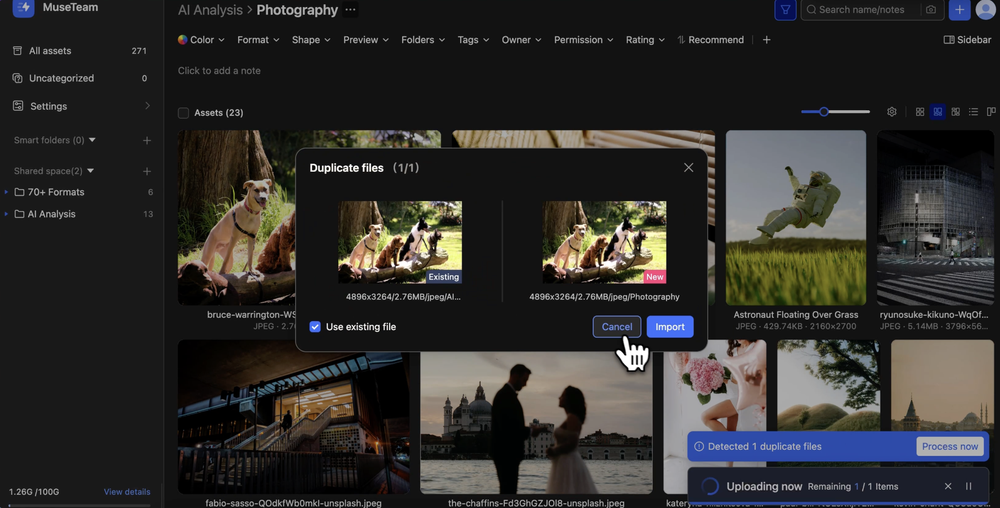
MuseDAM features intelligent Duplicate File Detection that automatically identifies identical content during the upload process. This proactive tool helps your team prevent asset redundancy, maintain a clean and organized library, and significantly optimize your storage efficiency.
Catch duplicates before they clutter your workspace during massive asset imports.
Storage Optimization: Prevent identical heavy files (like videos or high-res PSDs) from eating up your storage quota.
Team Collaboration: Avoid scenarios where multiple team members unknowingly upload the exact same campaign assets.
Library Hygiene: Keep your single source of truth clean by relying on original assets rather than creating unnecessary copies.
Prerequisites
Availability: All MuseDAM plans.
Permissions: Members must have Upload permissions.
Requirements: None. The duplicate check is triggered automatically in the background every time you upload an asset.
⚡ Quick Start
Upload: Select or drag and drop files into your asset library to begin the upload process.
Detect: The system automatically scans for duplicates and alerts you if any are found.
Resolve: Choose your preferred action (Import as a duplicate, Cancel, or Use the existing file).
📋 Step-by-Step Guide
1.Triggering the Detection
Click the "+" button at the top of the page, or simply drag and drop files directly into the asset library.
As the upload begins, MuseDAM silently runs an MD5 hash comparison in the background for each file.
If the system detects a file whose content matches an asset already existing in your library, a notification banner will appear in the bottom right corner: "Detected N duplicate files."
Click the Process now button to resolve the conflicts.
2.Reviewing the Comparison Details
Clicking "Process now" opens the "Duplicate files" dialog box, which provides a clear side-by-side comparison:
Progress Indicator: The top header shows your place in the queue (e.g., "1/2" means you are reviewing the first of two duplicate conflicts).
Existing Asset (Left): Displays the thumbnail and file path of the asset already stored in your library, labeled "Existing".
New Asset (Right): Displays the thumbnail and target path of the file currently being uploaded, labeled "New".
Metadata: Both sides list the file dimensions, size, and format to help you easily verify the match.
3.Resolving the Conflict
At the bottom of the dialog box, you have several options to handle the duplicate:
Option
Description
☑️ Apply to all (N)
Check this box to automatically apply your current decision to all remaining duplicate files in the batch, skipping the manual review for the rest.
☑️ Use existing file
Check this box to abort the current upload and instead create a reference. The existing asset will now dynamically appear in your current target folder without taking up extra storage space.
Cancel
Abort the upload operation for this specific file entirely.
Import
Ignore the warning and force the upload. Two identical copies of the asset will now exist in your library.
💡 Best Practice: For identical assets, we highly recommend checking "Use existing file" alongside "Apply to all". This resolves all conflicts instantly, saves your storage space, and ensures your assets remain centralized and unified!
❓ FAQs
Q: How does the system determine if an asset is a duplicate?
A: MuseDAM uses MD5 hashing (a unique digital fingerprint) to precisely identify files. This means that even if a user changes the file name, the system will still catch the duplicate as long as the underlying content is identical.
Note: If an image has been cropped, rotated, or color-graded, its MD5 hash changes. Therefore, edited versions are treated as brand new files and will not trigger the duplicate warning.
Q: My upload seems to be stuck on the detection phase. What should I do?
A: Please check your internet connection or try refreshing the page. If you are uploading exceptionally large files, the MD5 hash calculation naturally takes a bit more time to complete. This is normal behavior.

.png&w=3840&q=75)