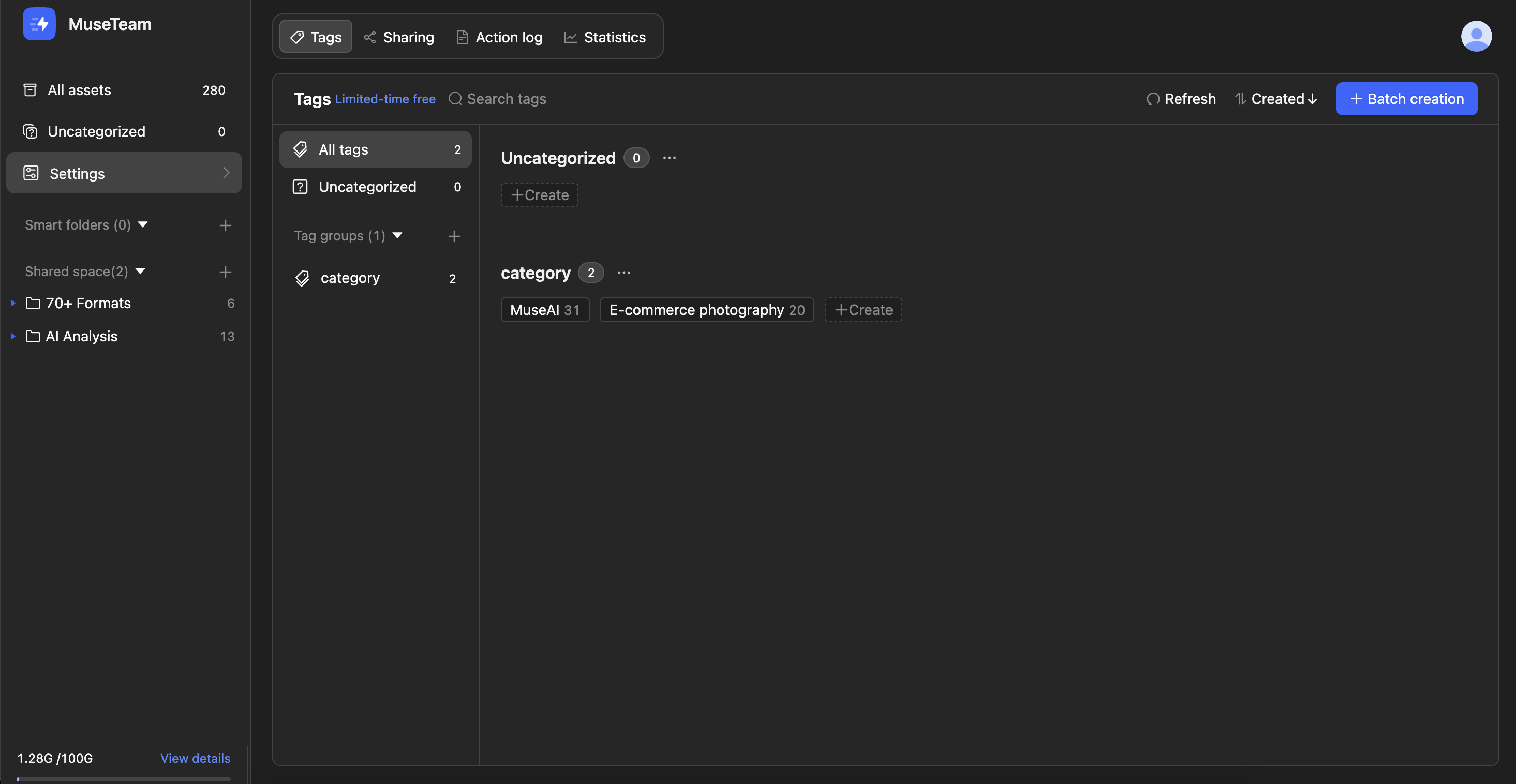
Tag Management is one of MuseDAM's core asset organization features. Admins can create and maintain a centralized tag library from the Admin Console, using a two-level structure of tag groups and tags to build a clear taxonomy. You can add tags one at a time or import them in bulk. Once configured, team members can use the tag filter in the asset library to quickly find exactly what they're looking for.
Brand asset organization: build a tag taxonomy based on brand, product line, and usage context to standardize how your team labels assets
Managing multi-category assets: for industries with large SKU counts (fashion, beauty, etc.), use a two-level "category → subcategory" tag structure for granular classification
Improving search efficiency: standardized tags combined with search filters transform asset discovery from "scrolling through guesswork" to "pinpoint retrieval"
Prerequisites
Available on: Personal and Team plans
Permission required: Admin
🚀Quick Start
In the left sidebar, click Admin Console and go to the Tag Management tab
Click + Batch creation in the top right to open the bulk creation dialog
Enter your tag groups and tags in the correct format (prefix group names with #, list each tag on its own line)
Click Create now — your tag groups and tags are created instantly
Go back to the asset library and click Tags in the top filter bar to start filtering
📋 Detailed Guide
1)Understanding the Tag Structure
MuseDAM tags follow a two-level structure:
Tag Group (classification dimension) └── Tag (specific value)
For example, here's how a luxury brand team might set up their tag taxonomy:
# Brand BURBERRY / DIOR / GUCCI / CHANEL / PRADA
# Asset Type Product shot / Lifestyle / Model / Video
# Usage Context E-commerce hero / Social media / Print / PR
💡 Tip: Name your tag groups after classification dimensions (Brand, Category, Context) rather than specific values. This keeps your taxonomy scalable as your library grows.
2)Creating Tags and Tag Groups Individually
To create a new tag group:
Click the + icon at the bottom of the tag group list on the left
Type a name and press Enter to confirm
To add tags to a tag group:
Select the target tag group from the left — its tags will appear on the right
Click + New at the end of the tag list
Type the tag name and press Enter to save
3)Bulk Creating Tags and Tag Groups
Use bulk creation when setting up your tag library for the first time or when you need to create multiple tag groups at once.
Click + Batch creation in the top right
In the text box, enter your content using this format:
#Group 1
Tag A
Tag B
Tag C
#Group 2
Tag 1
Tag 2
⚠️ Warning: Format rules: start each tag group name with # (no space after the #), list each tag on its own line with no prefixes, and leave a blank line between different tag groups.
Click Create now to complete the import
4)Filtering Assets by Tag
Once tags are set up, team members can filter assets from the top filter bar in any folder or the All assets view:
Go to All assets or open any folder
Click Tags in the top filter bar
In the dropdown panel, select a tag group and check one or more tags
Set the filter logic: Match any (OR) or Match all (AND)
5)Managing Existing Tags
Action
How to do it
Rename a tag group
Double-click it, or click ··· next to the group name and select Rename
Delete a tag group
Click ··· next to the group name and select Delete
Add a tag
Click + New inside the target tag group
Delete a tag
Right-click the tag and select Delete tag
Search for a tag
Click the Search tags field at the top and type a name
Refresh the list
Click Refresh in the top right to sync the latest changes
📊 Viewing Asset Count per Tag
Each tag displays a live count of how many assets are linked to it. A count of 0 means the tag isn't in use yet — a handy signal for admins to clean up unused tags.
🔍 Jumping to Tagged Assets
Right-click any tag to open a context menu with the following options:
Search linked assets: jump directly to the asset library with that tag pre-applied as a filter
Rename: update the tag name
Delete tag: remove the tag from the library (this cannot be undone — check the affected assets before proceeding)
💡 Tip: Right-clicking and selecting "Search linked assets" is the fastest way to audit a tag's actual usage — perfect for tag clean-ups or asset reviews.
❓ FAQ
Q:What's the difference between tags and folders? When should I use tags?
Folders are a physical storage structure — an asset can only live in one folder at a time. Tags are logical labels — the same asset can have multiple tags. Use folders to manage project ownership, and tags to capture content attributes (brand, asset type, usage context). Combining both gives you the most powerful search experience.
Q:If I delete a tag, will it affect assets that already have that tag?
Yes. Deleting a tag removes it from all tagged assets immediately, and those assets will no longer be discoverable by that tag. This action cannot be undone. We recommend using the tag filter to review the affected assets before deleting.
Q:I'm getting a format error during bulk creation. What should I check?
Check the following: the tag group name must start with a # symbol; there should be no space between # and the group name; each tag must be on its own line with no extra symbols or spaces.
Q:Can regular team members create or delete tags?
No. Creating, editing, and deleting tags all require admin permissions.