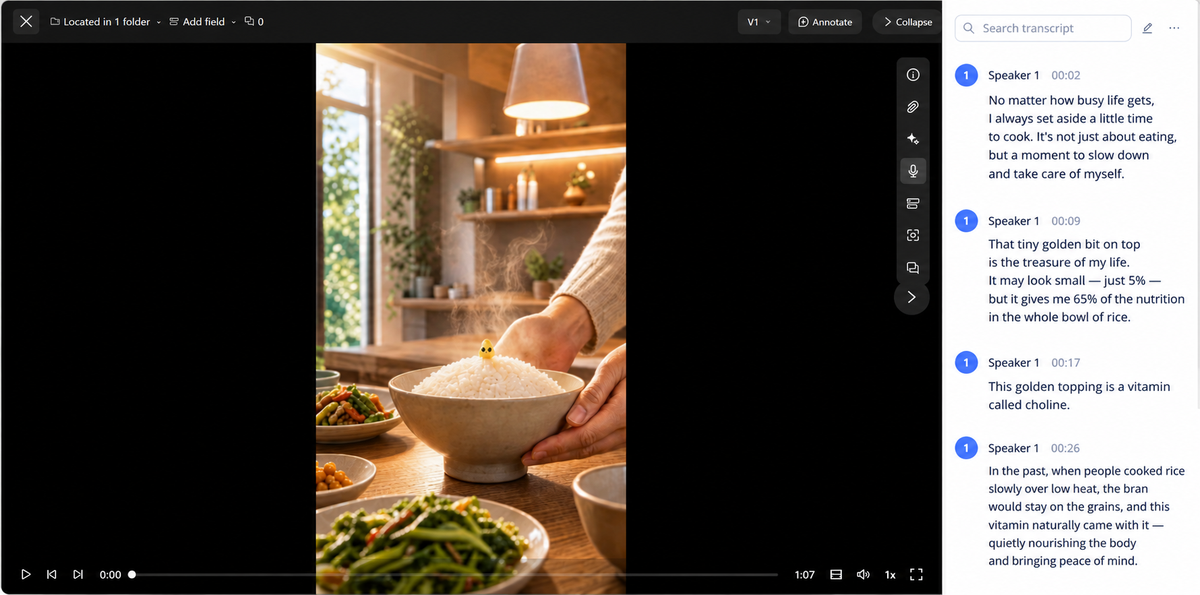
Video Transcription automatically converts spoken audio in a video into text, complete with speaker labels and timestamps. You can view, search, edit, and export the transcript to quickly access dialogue, voiceovers, and other spoken content, making it easier to find information, organize scripts, and prepare content for further use.
Video Transcription is useful for videos that contain dialogue, voiceovers, interviews, presentations, or other spoken content. Common use cases include:
Ads and short-form videos: Quickly extract voiceovers, spoken lines, and script content.
Interviews and conversations: Distinguish between different speakers in multi-person conversations.
Long-form video search: Use keywords to quickly find specific spoken content.
Script and subtitle preparation: Review and refine transcribed text for further use.
Before You Begin
Availability: MuseDAM Enterprise
Permissions required: You need permission to view the corresponding video asset.
Prerequisite: The video must contain recognizable speech. Transcription accuracy may vary depending on audio quality, background noise, accents, and overlapping speech.
🚀 Quick Start
Open the video asset and go to the asset detail page.
Click the Video Transcription icon in the toolbar on the right.
Once the audio has been processed, the transcript appears in the panel on the right.
Search, review, or edit the transcript as needed.
📋 Step-by-Step Guide
1.Viewing a Video Transcript
Open the video asset and click the Video Transcription icon in the toolbar on the right.
The transcript is displayed in segments following the order of speech in the video. Each segment includes:
Speaker: Identifies and distinguishes between different speakers.
Timestamp: Shows where the segment occurs in the video.
Transcript: Displays the transcribed speech for that segment.
Use the timestamps to quickly locate the corresponding part of the original video without repeatedly scrubbing through the timeline.
2.Searching for the Transcript
For longer videos with extensive transcripts, use the Search keywords field at the top of the panel to find specific content.
This is particularly useful when you need to locate product names, people, brand information, key lines, or specific topics within a long video.
3.Editing the Transcript
If the automatically generated transcript contains errors or needs further refinement, click the Edit icon at the top of the panel.
In edit mode, you can update the transcribed text directly. When you're finished, click Confirm in the upper-right corner to save your changes. To discard your changes, click Cancel.
💡 Tip: We recommend reviewing automatically generated transcripts against the original video, especially when they contain brand names, product names, or industry-specific terminology.
4.Exporting the Transcript
To use the transcript for script preparation, content reviews, or other workflows, click ··· in the upper-right corner and select Export Transcript.
The transcript for the current video will be exported, so you can continue working with it outside MuseDAM.
❓ Frequently Asked Questions
Q: Why isn't some of the speech transcribed accurately?
A: Transcription accuracy depends on the quality of the video's audio. Background noise, unclear speech, overlapping speakers, or certain accents may affect the results. If needed, you can enter edit mode and correct the transcript based on the original video.
Q: Can Video Transcription distinguish between multiple speakers?
A: Yes. The system automatically identifies different speakers and labels their speech separately in the transcript, making multi-person conversations easier to follow. Speaker identification accuracy may vary depending on the audio.
Q: How can I quickly find a specific line in a video?
A: Enter a relevant keyword in the search field at the top of the transcription panel. You can then use the timestamp shown alongside the matching transcript segment to locate the corresponding moment in the video.
Q: Can I edit an automatically generated transcript?
A: Yes. Click the Edit icon to enter edit mode and update the transcript. When you're finished, click Confirm to save your changes.