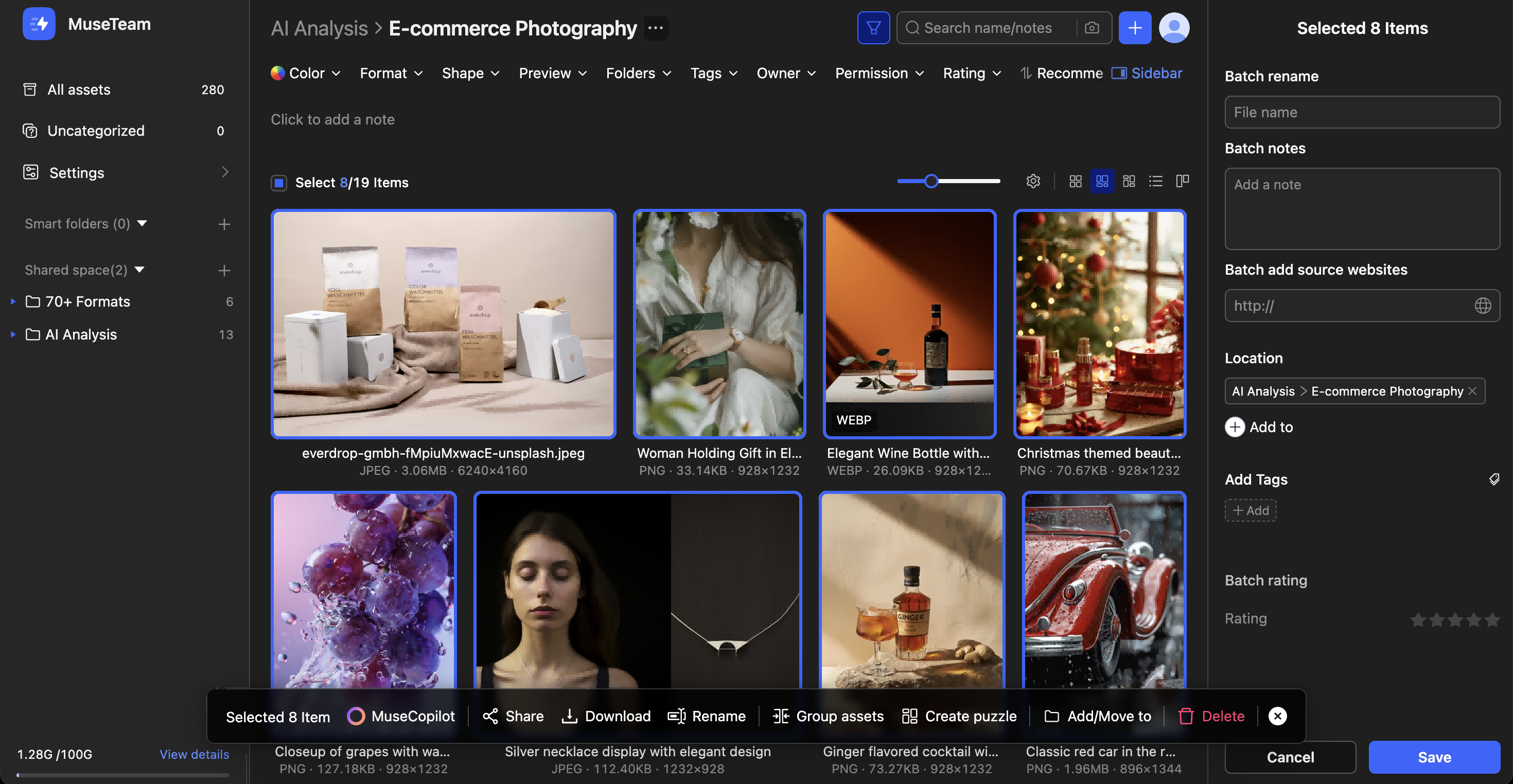
Bulk Edit lets you select multiple assets at once and update shared attributes across all of them in a single action — right from the sidebar. Fields you can edit in bulk include notes, source URL, folder location, tags, and star rating. Click Save and every change is written to all selected assets simultaneously, cutting out the repetitive work of editing one asset at a time.
Adding notes in bulk — After uploading a new batch of assets, add shooting context, project background, or any other notes across the whole set at once
Applying shared tags — Tag an entire batch with the same brand, category, or campaign label in one step
Assigning assets to folders — Add multiple assets to a new folder without removing them from their current location, enabling cross-project reuse
Recording source URLs — Log the original source for a batch of assets to support copyright tracking and rights management
Bulk rating — Rate a reviewed set of assets in one go, then use the rating filter to surface your highest-quality content quickly
Before you begin
Availability: All plans
Permissions required: Member with edit permission
Prerequisite: Two or more assets must be selected, and the sidebar must be open
🚀 Quick Start
Select two or more assets in your asset library
The top-right corner will show "X items selected" and the sidebar will automatically display the bulk edit panel
Fill in or update the fields you want to change
Click Save at the bottom — all changes are applied to every selected asset at once
✨ Expected result: The updated fields are reflected across all selected assets. You can verify the changes in the asset details panel or List view.
📋 Step-by-Step Guide
Editable Fields in Bulk Edit
Once you've selected multiple assets, the sidebar displays the bulk edit panel with the following fields:
✏️ Bulk Rename
Rename multiple assets at once using a custom naming template or find-and-replace rules.
📄 For full instructions, see the Batch Renaming Assets help article.
📝 Bulk Notes
Enter text in the notes field and click Save — the notes for every selected asset will be updated to that content.
⚠️ Important: Bulk notes overwrite existing content. Any notes already on the selected assets will be replaced. If you only want to add notes to assets that don't already have one, use filters to check the notes status of your selection before proceeding.
🔗 Bulk Source URL
Enter the original source URL (starting with http://) and save to write it to the source field of all selected assets — making it easy to trace asset origins for copyright and rights management.
📂 Folder Location
Current folders — Displays the folder path shared by the selected assets. Click × next to a folder to remove the assets from it
Add to folder — Click + Add to to assign all selected assets to an additional folder without affecting their existing folder memberships
🏷️ Add Tags
Click + Add to select tags from your tag library. After saving, the chosen tags are added to all selected assets.
💡 Note: Bulk tagging is additive — it only adds the tags you select. Any tags already on the assets are kept intact.
⭐ Bulk Rating
Click the star icons to assign a rating from 1 to 5 across all selected assets at once. Combine this with the Rating filter to quickly surface your best-performing assets.
❓ Frequently Asked Questions
Q: Will bulk notes overwrite the existing notes on my assets?
Yes. Bulk notes use an overwrite method — after saving, all selected assets will have their notes replaced with the new content. Previous notes are not retained. If you need to preserve existing notes, we recommend editing assets individually instead.
Q: Will bulk tagging remove the tags my assets already have?
No. Bulk tagging is strictly additive — only the new tags you select are added. All existing tags on the selected assets remain untouched.