📥 Download in Specified Format | Help Center | MuseDAM
📥 Download in Specified Format
Written by MuseDAMUpdated on April 7, 2026
🎯 Overview
Download in Specified Format lets you customize the output file format (JPG or PNG), image dimensions, and quality settings at the point of download — no external tools needed. It's a straightforward way to handle basic format conversion and compression right within MuseDAM, so your assets are ready to use the moment they land on your device.
Format conversion — Convert WEBP, PNG, or other formats to JPG on download to meet platform requirements or client specifications
Resizing — Scale high-resolution originals down to a specified size before downloading — ideal for social media posts, email attachments, or anywhere size limits apply
File size reduction — Lower the output quality to significantly reduce file size, perfect for performance-sensitive contexts like landing pages and mobile web experiences
Before you begin
Availability: All plans
Permissions required: Member with asset download permission
🚀 Quick Start
Select your assets — Find and select the assets you want to download from your library
Configure your settings — Click the Download button, choose Download in Specified Format, and set your parameters
Confirm and download — Click Download to get your files
📋 Step-by-Step Guide
Step 1 — Select Your Assets
Browse or search your asset library to find the files you need
Click a thumbnail to select it — a selection indicator will appear in the top-right corner of the tile
You can select multiple assets at once for a batch download
Step 2 — Open the Format Settings
Click the Download button at the bottom of the page
Select Download in Specified Format from the menu
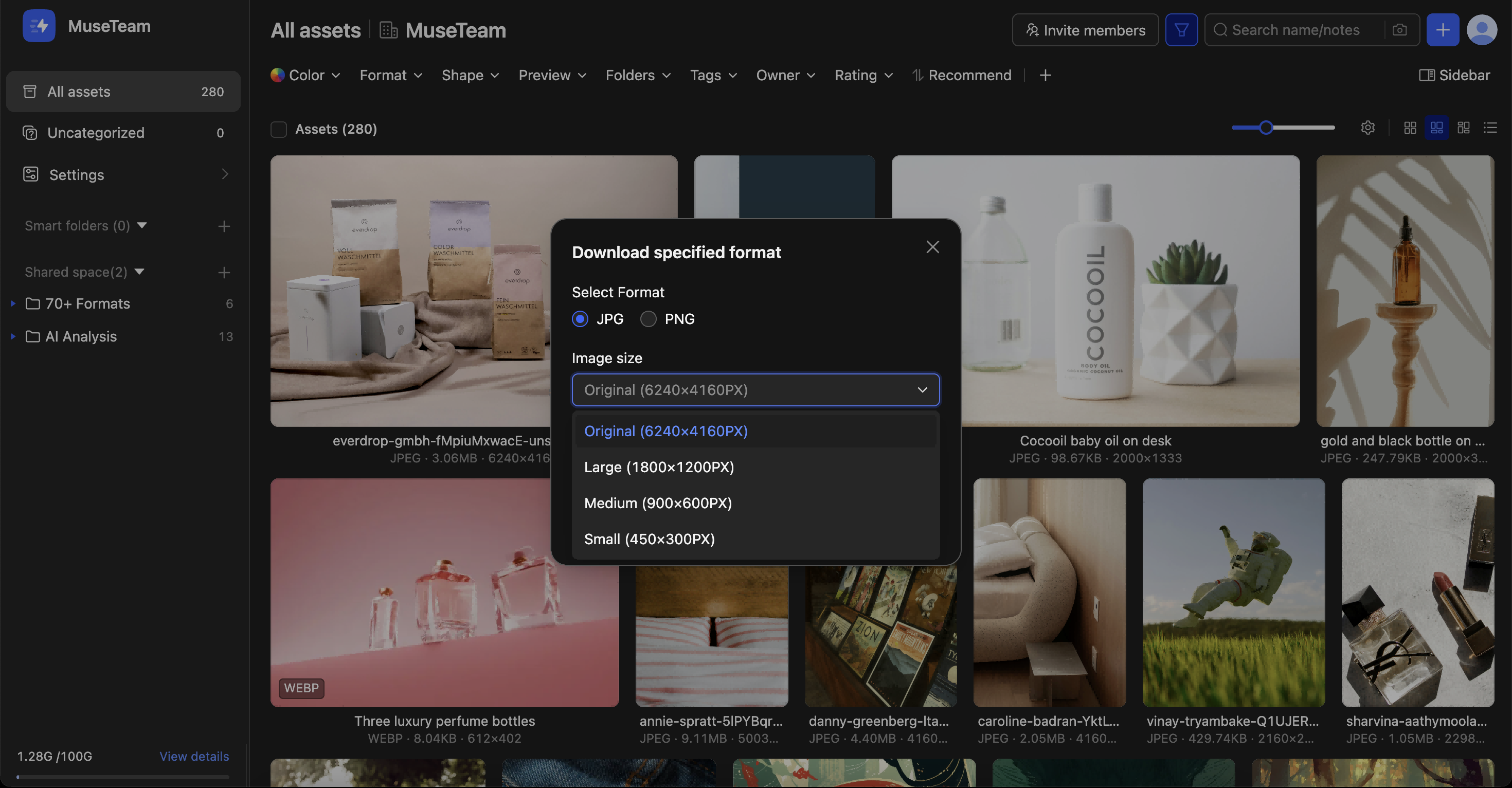
The Download in Specified Format configuration dialog will appear
Step 3 — Configure Your Download Parameters
File Format 📁
Format
Best For
JPG
Photography and general imagery — smaller file sizes, great for web and delivery
PNG
Logos, icons, and design assets that require a transparent background
Image Size 📐
Option
Description
Original
Preserves the asset's native resolution
Large
High-resolution output
Medium
A balanced option that trades some resolution for a smaller file size
Small
Compact output, suitable for thumbnails and previews
💡 Recommendation: Use standard sizing for social media assets, and original resolution for anything destined for print.
Image Quality ⚖️
Option
Description
Original (100%)
Maximum quality — larger file size
High (90%)
A good balance of quality and file size for most use cases
Medium (60%)
Well-suited for general web use
Low (30%)
Smallest file size — best for previews and drafts
❓ Frequently Asked Questions
Q: The downloaded file quality isn't what I expected — what should I check?
Review your quality setting in the configuration dialog. For hero assets or anything that will be used in final production, we recommend selecting Original (100%) to preserve full quality.
Q: Can I batch download assets in different formats at the same time?
Not in a single operation — each format needs to be configured and downloaded separately. We recommend grouping your assets by intended use case and running a separate batch download for each format.
Q: My PNG download is much larger than expected — is that normal?
PNG uses lossless compression, which means file sizes tend to be larger than JPG. If your asset doesn't require a transparent background, switching to JPG will give you a noticeably smaller file without a significant drop in visual quality.